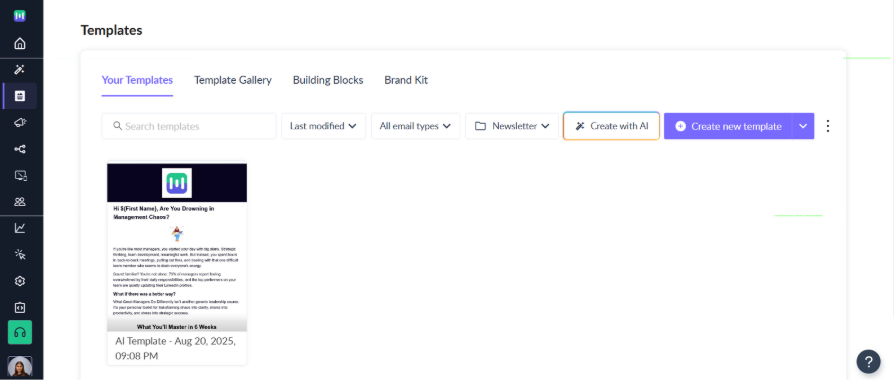
How to add your Templates to a Folder
Last updated December 10, 2025
The Templates Folder feature, launched in September 2025, introduces a powerful new way to stay organized and work smarter. Now, you user can effortlessly group templates into custom folders, making your workflow cleaner, faster, and more intuitive than ever. The feature is enabled for everyone, but if you haven’t explored it yet, you’re just a few clicks away from transforming how you manage your templates!
Moving a Template into a Folder
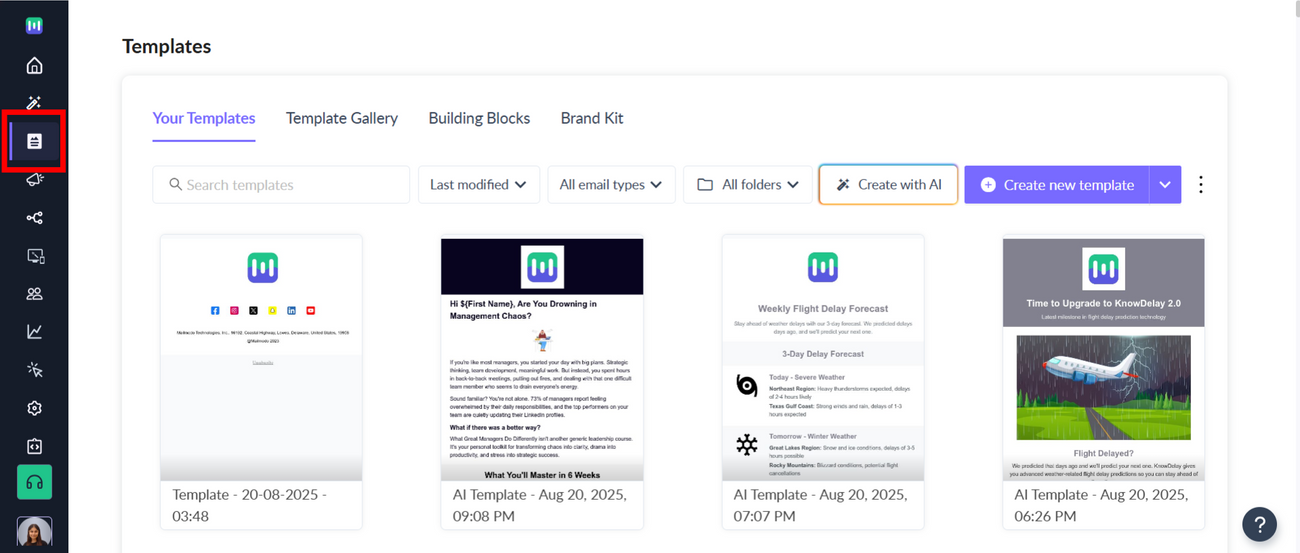
Step 1: Open the Templates Gallery.
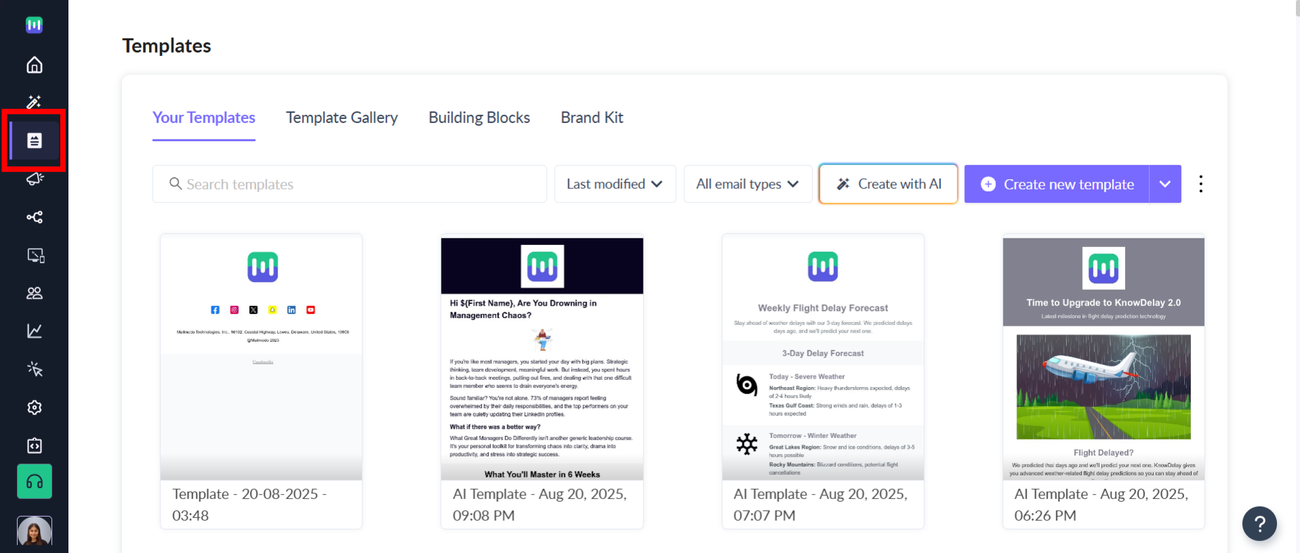
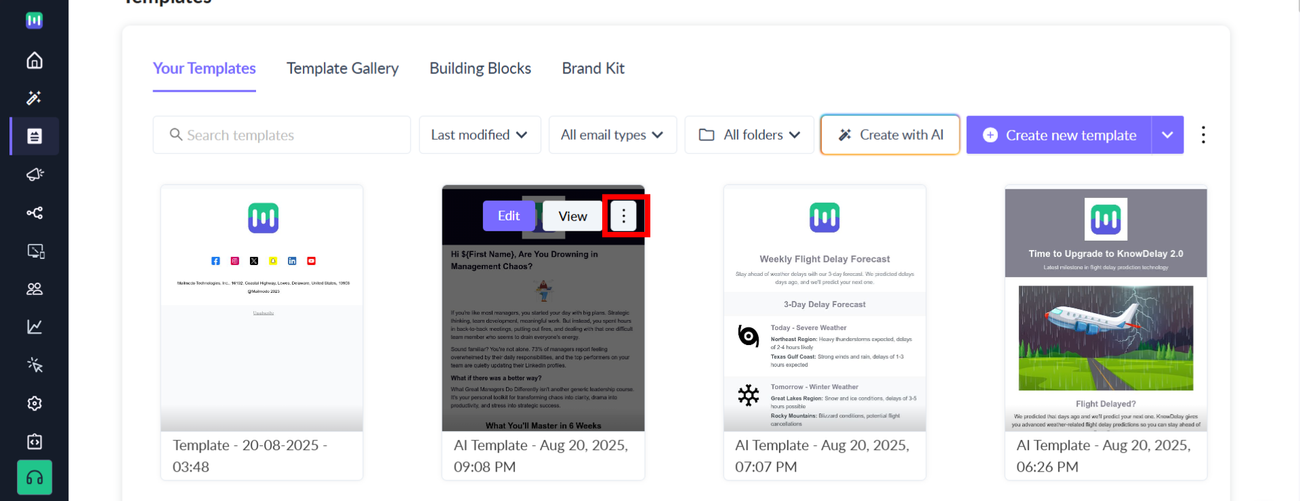
Step 2: Locate the template you want to organize and click the three-dot menu.
Step 3: Select Move to folder.
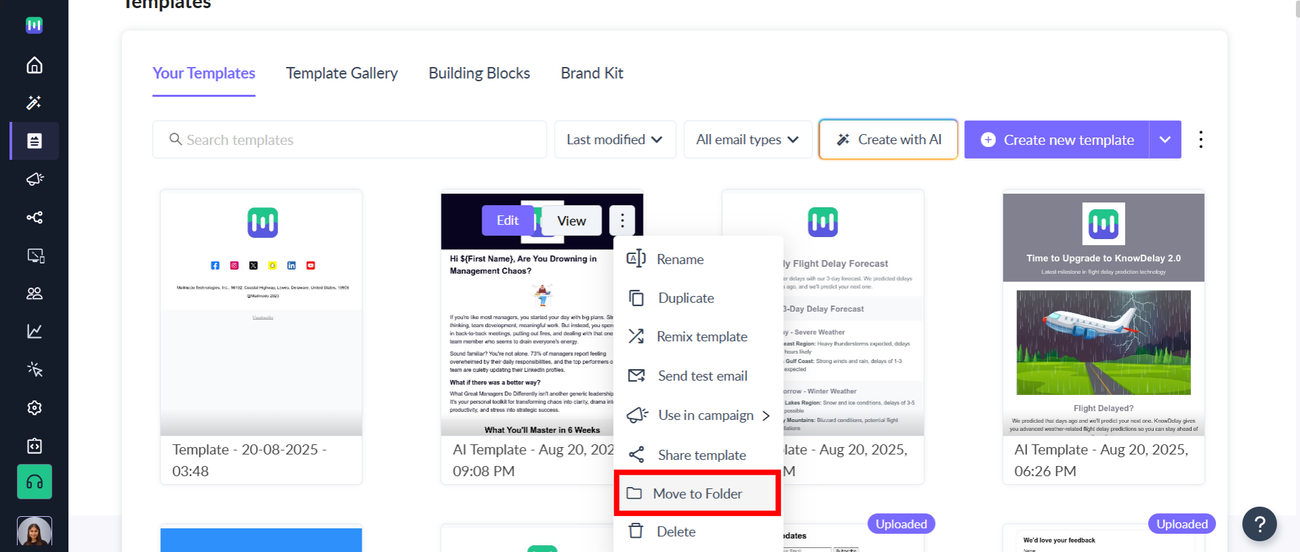
From the dropdown: - Choose an existing folder, or - Click + Create New to make a new folder.
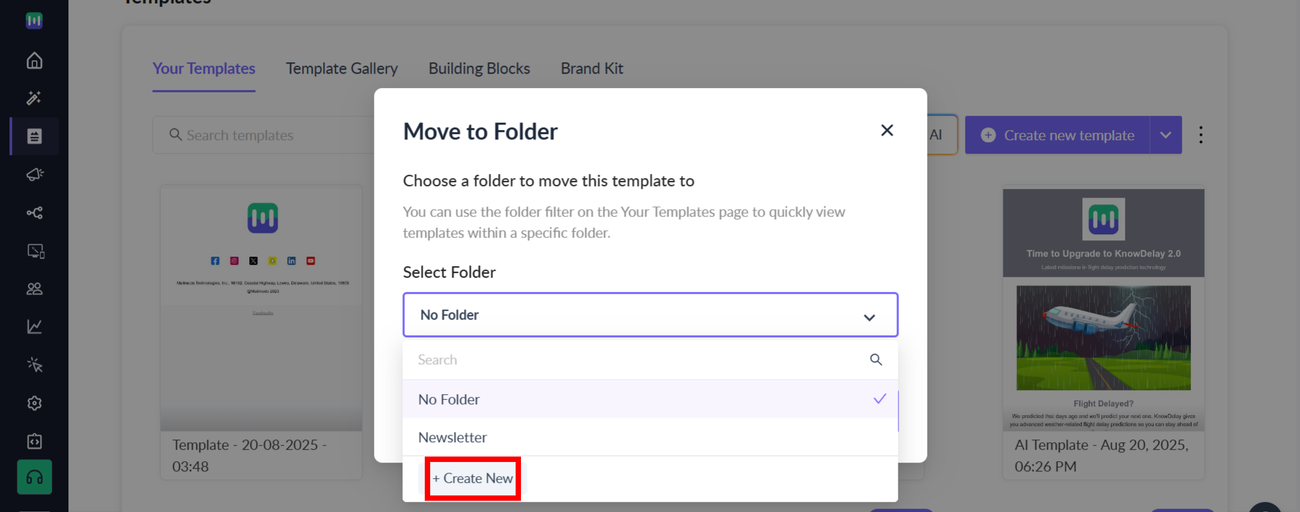
Step 4: Click on Move to folder.
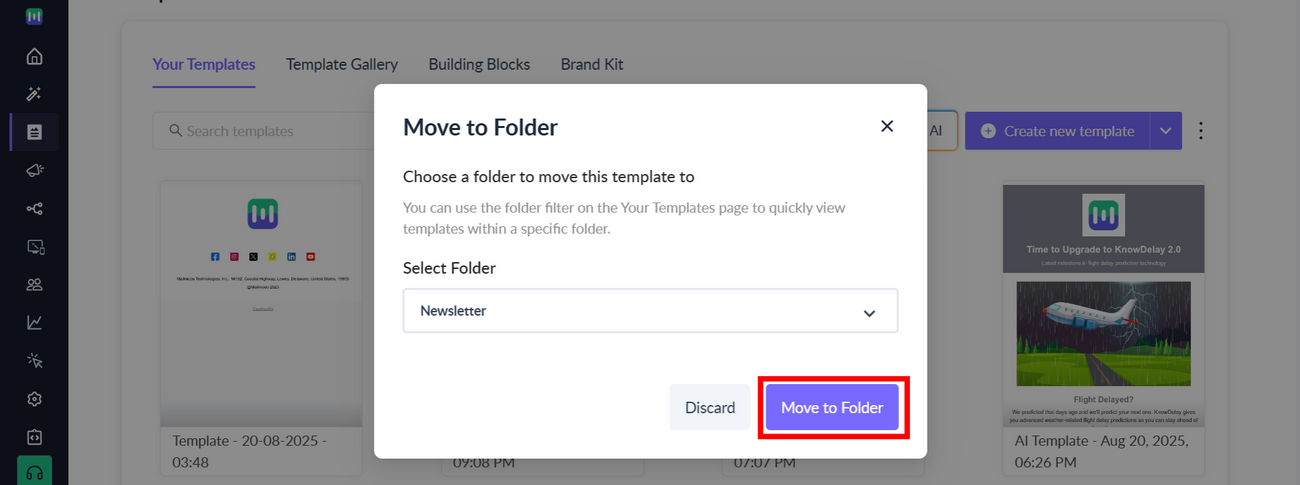
Your template will now appear within the selected folder. You’re all set!
Viewing Templates by Folder
Step 1: Go to the Templates Gallery.
Step 2: Use the folder dropdown to select and view templates from a specific folder.
If you don’t see this option yet, it simply means no folders have been created. Just move a template into a folder using the steps above ( Moving a Template into a Folder ) and the option will appear automatically.
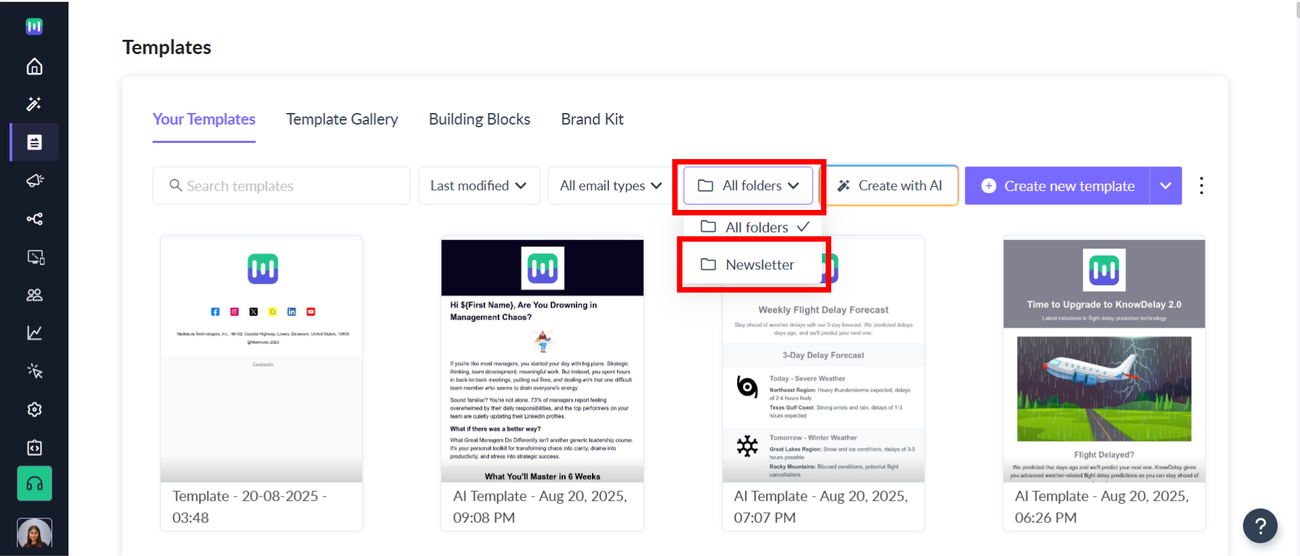
You can view your templates in the folder now!